
Adjust Gift Card Balance
Gift Cards within Loyalty let marketers provision gift cards to Members and visitors, who can then use those Gift Cards to make purchases in-store and online. Every Gift Card has a balance indicating how much it is currently worth. Typically, as a Member makes purchases using their Gift Card, the balance automatically decreases. The platform supports an "auto-reload" feature that will put more money back onto the Gift Card if the balance drops below a specified threshold (see Edit Gift Card Properties). In addition, from the Gift Card Details screen, you can manually adjust a Gift Card balance, either upwards or downwards.
Note: You can also adjust a Gift Card balance from the Member Profile screen. See Adjust Gift Card Balance for more information.
To manually adjust the balance of a Gift Card:
-
Select Transactions from the top navigation bar, then select Gift Cards > Gift Cards from the side navigation menu. The Gift Cards screen is displayed.
-
Search for and select the desired Gift Card (see Search for a Gift Card for more information on the available search options). The Gift Card Details screen is displayed.
-
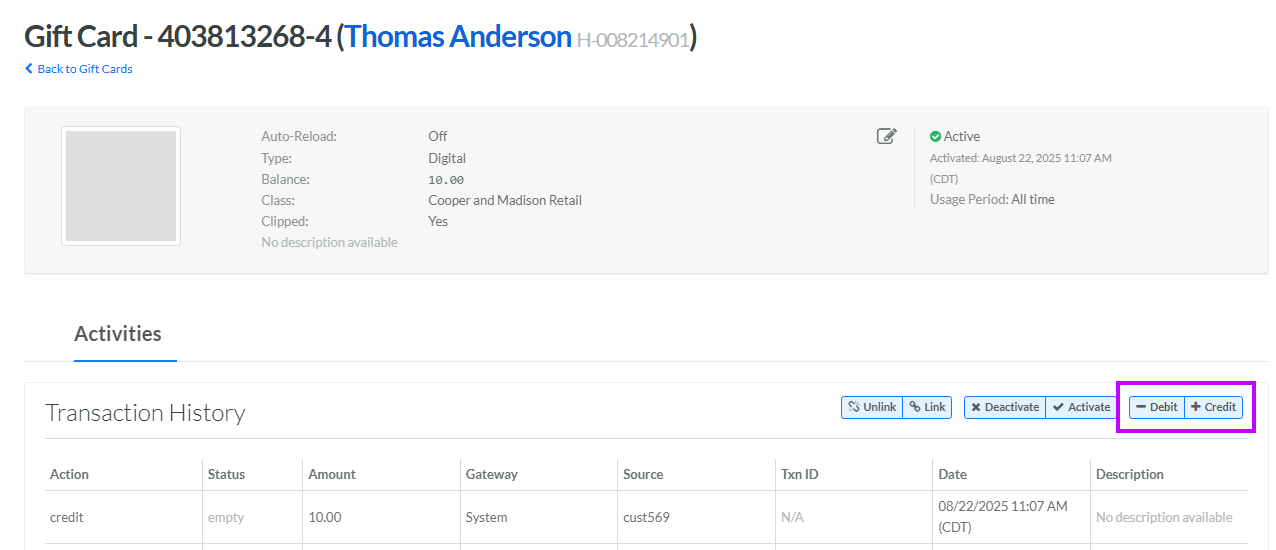
Click either:
-
Credit: To add money to the Gift Card balance, click Credit. The Credit pop-up window is displayed.
-
Debit: To remove money from the Gift Card balance, click Debit. The Debit pop-up window is displayed.
-
-
In the Amount field, enter the amount of the balance adjustment.
-
Optionally, in the Description field, enter the reason for the manual balance adjustment.
-
Click Save.
